---
updatedAt: 2026-08-24T17:52:53.000Z
agentTools:
projectIndex: https://docs.rainforestpay.com/llms.txt
---
# Enable PayPal
Enable PayPal, Venmo and PayPal Pay Later
PayPal, Venmo and PayPal Pay Later are currently in **Beta**.
Please contact Rainforest support or your Platform Success Manager for more information on this feature.
### Feature Requirements
🔐 Rainforest must enable the platform to access this feature
💲 Billing fees associated to this feature
You can implement [PayPal](https://docs.rainforestpay.com/docs/paypal) into your existing Rainforest integration in 4 steps:
* Enable PayPal and configure your merchant billing profiles
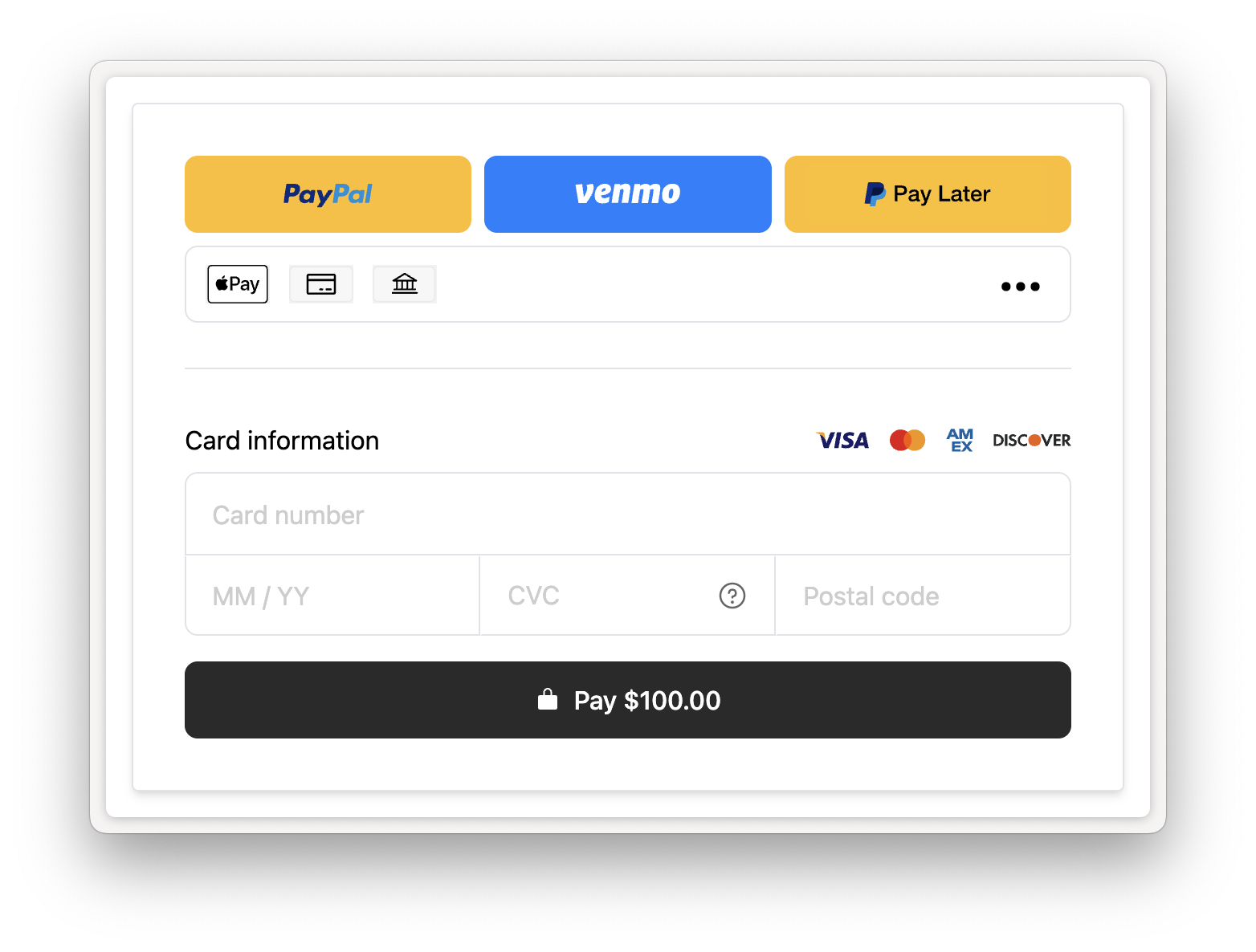
* Configure the PayPal, Venmo and PayPal Pay Later buttons in the Payment Component
* Handle the PayPal payment method in your platform
* Update [store payment method](https://docs.rainforestpay.com/docs/store-payment-methods-via-component) integration
# Configure the merchant
***
In the Rainforest Sandbox and Production environments, Rainforest will need to enable these payment methods for your platform. Once you're ready to enable, reach out to , and Rainforest will coordinate enabling the feature in both environments.
### Update your merchants billing profiles
The fees and rates applied for payments processed with PayPal, Venmo, and PayPal Pay Later payment methods are managed through the [merchant's billing profile](https://docs.rainforestpay.com/docs/paypal#billing).
Rainforest will perform a one-time update for existing billing profiles that currently have PayPal fees and rates set to $0 or 0%, or you can create a new billing profile through the [Rainforest Platform Portal](https://platform.rainforestpay.com/).
### Enable your merchants
Reach out to and Rainforest will enable your platform and merchants for PayPal, Venmo and PayPal Pay Later. Each merchant must be [configured with PayPal](https://docs.rainforestpay.com/docs/paypal#merchant-onboarding) prior to processing PayPal or Venmo payments.
If a merchant has completed PayPal onboarding and is eligible to accept PayPal payments, PayPal will appear in the list of allowed payment methods on the merchant details screen in the [Rainforest Platform Portal](https://platform.rainforestpay.com/).
This visibility indicates that the merchant is correctly configured with PayPal. If PayPal does not appear in the allowed payment methods list, the merchant has not completed PayPal onboarding or is not yet eligible to process PayPal payments.
Once we've enabled the feature, the Payment Component must be configured to display the new payment method options for PayPal, Venmo, and PayPal Pay Later.
### Merchant information on end user PayPal receipt
The end user will be able to see the following merchant information in their PayPal portal on the payment receipt:
* Merchant DBA name
* Merchant email
* Merchant website
Make sure the merchant has the appropriate values set for these fields.
# Configure the payment component
***
## Enable new payment method buttons UI
PayPal, Venmo, and PayPal Pay Later payment methods are only available with the new [payment method buttons](https://docs.rainforestpay.com/changelog/payment-component-update-effective-march-3rd) UI in the Payment Component.
Update your embedded Payment Component to use the new Payment Method buttons by setting the `preview-features` prop and passing `ALLOWED_METHOD_BUTTONS`:
```diff
```
## Enable each payment method
Each payment method can be enabled by passing the respective payment method of `PAYPAL_WALLET`, `VENMO`, `PAYPAL_PAYLATER` into the list of `allowed-methods`.
```diff
```
For example, if the `allowed-methods` prop is set to `PAYPAL_WALLET,CARD,ACH`, then the Payment Component will display the PayPal button first, the Card button second, and the ACH (Bank transfer) button third.
## Number of payment method buttons
The number of payment method buttons displayed will dynamically adjust in response to the size of the Payment Component.
A max of three top-level payment method buttons can be displayed. As the width of the Payment Component decreases (e.g on mobile devices or smaller screens), the buttons will decrease to two buttons and one button.
A "more options" dropdown button will dynamically appear that contains all additional payment methods that are not visible as their own top-level buttons.
## Payment method order
The order of the payment method options is configurable with the `allowed-methods` prop. This comma separated list is the ordered list of payment methods to display from left to right.
```diff
```
## Event Listeners
If PayPal, Venmo or PayPal Pay Later are requested via the `allowed-methods` prop, we'll let you know if it is supported and available for the specified merchant via events.
The loaded event will return a payload in the following format:
```typescript
type ValidatedACHPartner = 'PLAID';
type LoadedPayload = {
apple_pay: {
is_supported: boolean;
};
validated_ach: {
partner: Nullable;
is_supported: boolean;
};
paypal_wallet: {
is_supported: boolean;
};
venmo: {
is_supported: boolean;
};
paypal_paylater: {
is_supported: boolean;
};
};
```
Listen to this event and parse the event data to know if each payment method is supported:
```javascript
const component = document.getElementById('payment-component');
component.addEventListener('loaded', function (data) {
if (data.detail[0].paypal_wallet.is_supported) {
console.log('PayPal is supported!');
}
if (data.detail[0].venmo.is_supported) {
console.log('Venmo is supported!');
}
if (data.detail[0].paypal_paylater.is_supported) {
console.log('PayPal Pay Later is supported!');
}
});
```
If PayPal, Venmo or PayPal Pay Later are not in the loaded event payload, make sure these payment methods are requested correctly via the `allowed-methods` prop, and that the merchant is onboarded successfully to PayPal.
The `PAYPAL_PAYLATER` method could be provided via the `allowed-methods` prop, but not supported if that payment is less than $30 or over $10,000.
# Handle PayPal, Venmo and PayPal Pay Later method types
***
Payments processed via PayPal, Venmo and PayPal Pay Later will be represented in the API as a separate types of payment methods.
Check if you have any code that looks at a Rainforest `Payin` or `PaymentMethod` and gets data from the `card` sub-object. For PayPal, Venmo, PayPal Pay Later, the following will be different:
* `method_type` will be `PAYPAL_WALLET`, `VENMO` or `PAYPAL_PAYLATER`
* The respective payment method type sub-object will be populated with relevant information on the payment method.
* `paypal_wallet` for the method type of `PAYPAL_WALLET`
* `venmo` for the method type of `VENMO`
* `paypal_paylater` for the method type of `PAYPAL_PAYLATER`
```json
{
// ...
"method_type": "PAYPAL_WALLET",
"card": null,
"paypal_wallet": {
"email": "john.smith@gmail.com",
}
}
```
## PayPal Pay Later replacement
The PayPal Wallet payment modal does not contain the Pay Later option. If an end user selects the PayPal (not Pay Later) button in the Rainforest Payment Component, they will **not** see Pay Later as an available payment option.
**However**, the PayPal Pay Later payment modal cannot be restricted to just the Pay Later option. End users will still be able to select PayPal Wallet payment options, even when selecting the PayPal Pay Later button in the Rainforest Payment Component
If an end user selects PayPal Pay Later in the Rainforest Payment Component, but then selects a PayPal Wallet payment type in the PayPal payment modal, the payment method associated with the payin will initially be`PAYPAL_PAYLATER`.
Before merchant deposits are created, Rainforest will replace that payins' associated payment method, with a new payment method of type `PAYPAL_WALLET`.
### Webhooks
When Rainforest replaces a PayPal payins' associated payment method from its current`PAYPAL_PAYLATER` payment method to a new `PAYPAL_WALLET` payment method, you will receive the following webhooks:
* [payment\_method.created](https://docs.rainforestpay.com/docs/payment-method-webhooks#created)
* [payment\_method.replaced](https://docs.rainforestpay.com/docs/payment-method-webhooks#replaced)
* [payment\_method.deactivated](https://docs.rainforestpay.com/docs/payment-method-webhooks#deactivated)
PayPal Pay Later payment methods can **not** be used for [future recurring payments](https://docs.rainforestpay.com/docs/process-payins-from-stored-payment-methods). Because the end user selected PayPal Pay Later in the Rainforest Payment Component, the new payment method will be deactivated and not usable for future payments, even though it is of type `PAYPAL_WALLET`.
PayPal Wallet payment methods normally can be used for [future recurring payments](https://docs.rainforestpay.com/docs/process-payins-from-stored-payment-methods), but not in this replacement scenario.
### Billing
The payins' billing fee will be updated to the `PAYPAL PAYIN` rate within your [billing profile](https://docs.rainforestpay.com/docs/paypal#billing).
# Update store payment method integration
***
PayPal and Venmo payment methods are restricted to an individual merchant, and cannot be used across multiple merchants.
PayPal Pay Later payment methods can **not** be stored.
## Create payment method config
When creating a PayPal or Venmo payment method using [Store payment method via Component ](https://docs.rainforestpay.com/docs/store-payment-methods-via-component) , you must include the `originating_merchant_id` field in the [create payment method config](https://docs.rainforestpay.com/reference/create_payment_method_config) request.
This field identifies the merchant the payment method is restricted to. Once created, the payment method can only be used to process payins for that merchant.
If the `originating_merchant_id` field is not passed in the [create payment method config](https://docs.rainforestpay.com/reference/create_payment_method_config) request, the PayPal and Venmo buttons will not appear in the Rainforest Payment Component.
The `originating_merchant_id` field will not restrict Card, ACH or other payment types to a specific merchant. This field will only be used for PayPal or Venmo payment methods.
## Get payment method
[Get payment method](https://docs.rainforestpay.com/reference/get_payment_method) will return a `merchant_id` field for payment methods that are restricted to a specific merchant.
If present, this field indicates the merchant the payment method is restricted to, and confirms that the payment method can only be used to process payins for that merchant.
The `merchant_id` field will not be returned for payment methods that are not merchant-restricted, such as Card or ACH payment methods. This field will also be returned for payment methods captured on a [device](https://docs.rainforestpay.com/docs/devices-overview).
# Sandbox testing account
***
Once PayPal is in enabled in your Sandbox environment, you can test PayPal, Venmo and PayPal Pay Later in 3 steps:
1. Create PayPal end user account
2. Add valid credit card to PayPal wallet
3. Use PayPal end user account
## Create PayPal end user account
Create your own PayPal sandbox test account and PayPal wallet on [https://www.sandbox.paypal.com](https://www.sandbox.paypal.com/)
## Add valid credit card to PayPal wallet
You can use the [Credit Card Generator](https://developer.paypal.com/test-card-manager/) tool provided by PayPal to generate a valid card for your PayPal wallet. Ensure that the "Platform" is set to "PayPal Checkout" in settings by clicking the area highlighted in green.
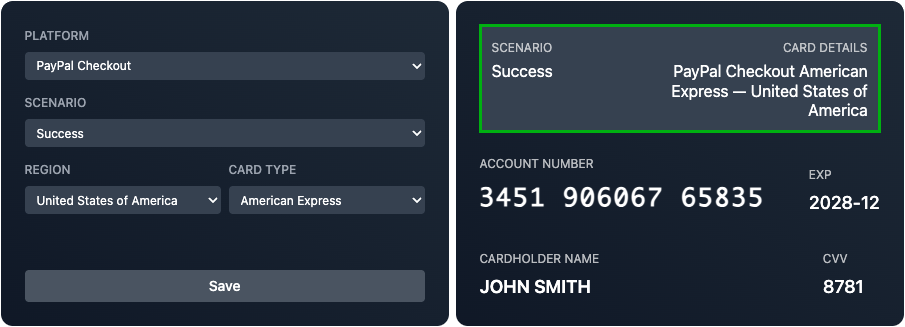
Link the generated card to your test wallet.
Only PayPal-generated card numbers can take Sandbox PayPal payments. Real credit card numbers will **not** be able to take PayPal payments in Sandbox.
## Use PayPal end user account
Once your sandbox PayPal end user account is created, you will be able to use it to make PayPal payments in the Rainforest Payment Component.
If the PayPal authentication modal requests an MFA code, use `111111`.