
Enable dynamic payment billing fees
Integrate dynamic billing fees per payment request
You can implement dynamic payment billing fees in three steps:
- Configure the billing fee when processing a payin
- Configure the billing fee when processing a refund
- Configure the Deposit Report Component to show the billing fees
Configure the payin billing fee
Defining the billing fee
When creating the payin config, the merchant_billing object supports defining a top-level rate, rate cap, and fee and a per payment method rate, rate cap, and fee.
The top-level rate, rate cap, and fee will be utilized for all payment methods and overrides the merchant's billing profile.
The per payment method rate, rate cap, and fee will take precedence over the top-level rate and fee and merchant's billing profile. The following payment methods are supported:
- Card - debit or credit card, including Apple Pay
- ACH - US bank accounts
- Validated ACH - US bank accounts collected by the user authenticating into their online bank account
- Accelerated ACH - US bank accounts accelerated to T+1 deposit timing
- PayPal Wallet - debit or credit cards, and US bank accounts through the PayPal wallet
- Venmo - debit or credit cards, and US bank accounts through Venmo
- PayPal Pay Later - debit or credit cards, and US bank accounts through PayPal Pay Later
"merchant_billing": {
  "rate": 3000,
  "rate_cap": 10000,
  "fee": 30,
  "currency_code": "USD",
  "card": { "rate": 2900, "rate_cap": 10000, "fee": 30, "currency_code": "USD" },
  "ach":  { "rate": 800, "rate_cap": 500, "fee": 0, "currency_code": "USD" },
  "validated_ach": { ... },
  "accelerated_ach": { ... },
  "paypal_wallet": { ... },
  "venmo": { ... },
  "paypal_pay_later": { ... }
}
Each payment method object is optional, allowing you to control the specific payment methods you want to set different rates and fees for.
Rate and fee requirements
The defined billing rate and fee can only be set to the values of:
- Rate: >= 0% and <= 25%
- Rate Cap: >= $0 and <= $100,000
- Fee: >= $0 and <= $10 (or less than the payin amount)
The following validation must be met:
- If the rate is greater than 0%, then the rate cap must be greater than $0. For example, to bill a rate of 1% up to $100 set the value to 10000.
- If the rate is 0%, then the rate cap must be $0.
- The fee can be up to $10, regardless of the amount of the payin. However, if the fee is greater than $10, then the fee cannot be greater than the amount field.
Payin config request
To define the top-level billing rate and fee, the create payin config request would look like the following to set a rate of 3% and fee of $2.00:
{
    "merchant_id": "REPLACE_ME",
    "idempotency_key": "REPLACE_ME",
    "amount": 10000,
    "currency_code": "USD",
+   "merchant_billing": {
+     "rate": 3000, // in per cent mille (1 PCM = 0.001%)
+     "rate_cap": 1000000, // in minor units
+     "fee": 200, // in minor units
+     "currency_code": "USD"
+   }
}
To define only a billing rate, set the billing fee to $0:
{
    "merchant_id": "REPLACE_ME",
    "idempotency_key": "REPLACE_ME",
    "amount": 10000,
    "currency_code": "USD",
+   "merchant_billing": {
+     "rate": 3000,
+     "rate_cap": 1000000,
+     "fee": 0,
+     "currency_code": "USD"
+   }
}
To define only a billing fee, set the billing rate to 0%:
{
    "merchant_id": "REPLACE_ME",
    "idempotency_key": "REPLACE_ME",
    "amount": 10000,
    "currency_code": "USD",
+   "merchant_billing": {
+     "rate": 0,
+     "rate_cap": 0,
+     "fee": 200,
+     "currency_code": "USD"
+   }
}
Process the payin
If the merchant_billing object is passed in the Payin Config, then Rainforest will determine which fee and rate to utilize to calculate the billing fee based on the following precedence order logic.
Card, PayPal and Venmo precedence order
When processing a Card, PayPal Wallet, Venmo, or PayPal Pay Later payin, determining the rate and fee will respect the following order of precedence:
- The respective payment method object in the payin config's merchant billing object
- The top-level rate, rate cap, and fee in the payin config's merchant billing object
- The respective payment method rate and fee in the merchant's billing profile
ACH precedence order
Validated ACH
Validated ACH is not currently supported in the merchant's billing profile. By default, the merchant's billing profile ACH rate and fee are used to calculate the billing fees that are applied.
With this feature, a specific Validated ACH rate and fee can be configured on the payin config. Determining the rate and fee will respect the following order of precedence:
- The Validated ACH payment method object in the payin config's merchant billing object
- The ACH payment method object in the payin config's merchant billing object
- The top-level rate and fee in the payin config's merchant billing object
- The ACH rate and fee in the merchant's billing profile
Accelerated ACH
When an ACH payment qualifies for acceleration, determining the rate and fee will respect the following order of precedence:
- The Accelerated ACH payment method object in the payin config's merchant billing object
- The top-level rate and fee in the payin config's merchant billing object
- The Accelerated ACH rate and fee in the merchant's billing profile
Partial authorization
The fee and rate are calculated based on the authorized amount of the payin. Therefore, if the payment is authorized for a partial amount then the billing rate is calculated on the authorized amount and the fee is applied. For example, given a 3% rate and $2 fee, for a $100 payment that only authorizes for $50 there would be a billing fee of $3.50 [($50 * 3%) + $2]. Note: this requires the Payin Config has partial authorization set to allowed.
Reporting
The fee will be visible to the merchant in the Payin Details Component regardless of how Rainforest calculated the fee.
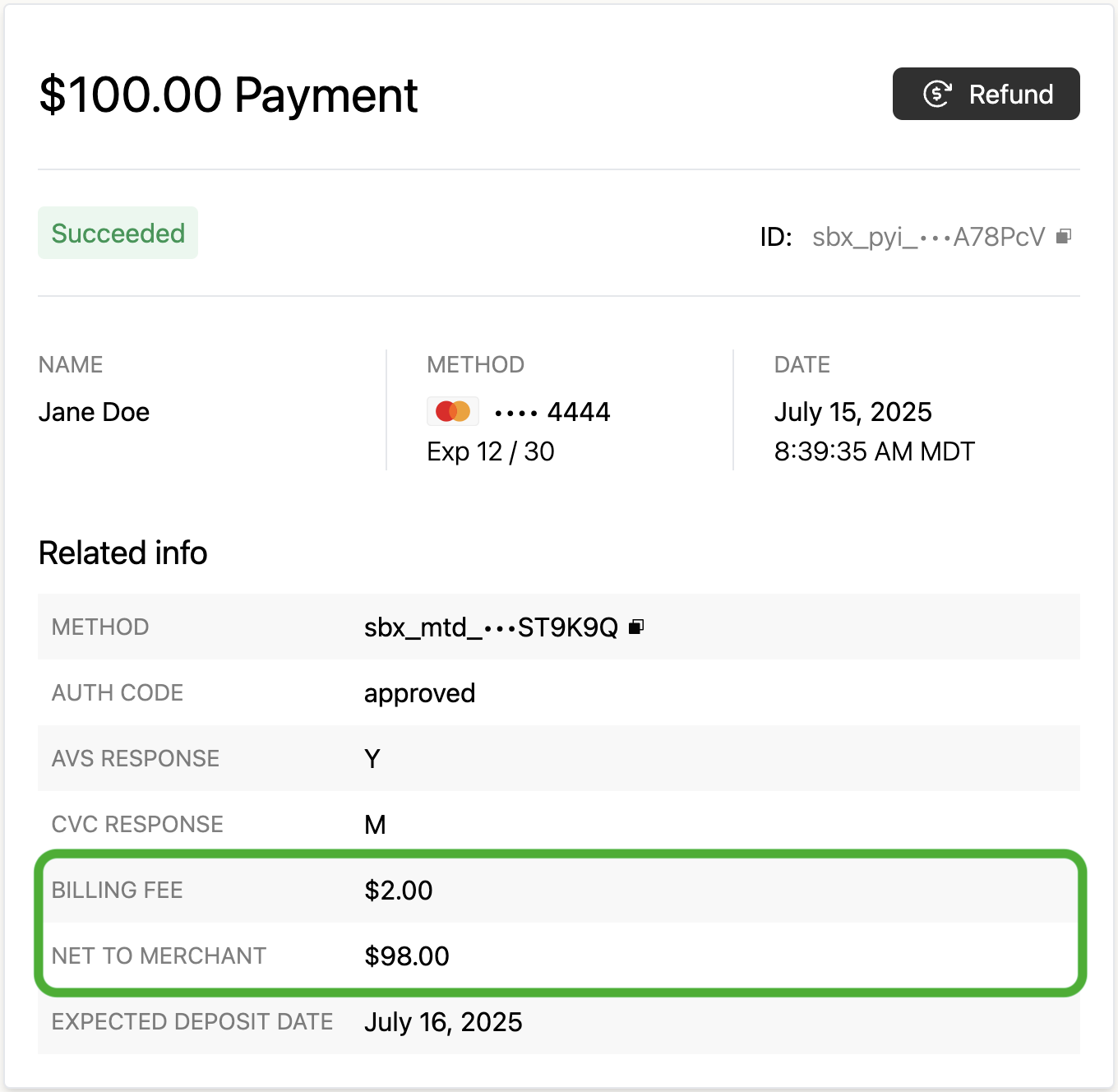
API
After processing the payin, the API response for the payment will return the following objects to specify the calculated billing fees:
merchant_fees- the merchant billing fee applied to the paymentapplied_billing- the rate, rate cap, and fee and the source that determined the billing fee. The source will be one of the following:MERCHANT_BILLING_METHOD- the payment method object in the payin config's merchant billing objectMERCHANT_BILLING- the top-level rate, rate cap, and fee in the payin config's merchant billing objectBILLING_PROFILE- the merchant's billing profile
{
  "data": {
    "payin_id": "pyi_2DrDKk5NIMbpuNGqm109SkpGDHh",
    //...
    "amount": 10000,
    "currency_code": "USD",
    //...
    "merchant_fees": {
      "total_amount": {
        "amount": 320,
        "currency_code": "USD"
      },
      "applied_billing": {
        "rate": 2900,
        "rate_cap": 10000,
        "fee": 30,
        "currency_code": "USD",
        "source": "BILLING_PROFILE",
        "merchant_billing_method_type": null
      }
    },
    //...
  },
  "errors": null
}
Configure the refund billing fee
Defining the billing fee
The billing rate and fee can be defined for the refund in the refund request. This allows for more flexibility of the merchant's billing fee on a per refund level. If the merchant billing object is set on the Refund request, then Rainforest will use this rate and fee to calculate the billing fee for the refund and not calculate the fee from the merchant's billing profile.
The defined billing rate and fee can only be set to the values of:
- Rate: >= -25% and <= 25%
- Rate Cap: >= -$100,000 and <= $100,000
- Fee: >= -$10 and <= $10 (or less than the amount of the refund)
The following validation must be met:
- If the rate is greater than 0%, then the rate cap must be greater than $0. For example, to bill a rate of 1% up to $100 set the value to 10000.
- If the rate is less than 0%, then the rate cap must be less than $0. For example, to bill a rate of -1% up to -$100 set the value to -10000.
- If the rate is 0%, then the rate cap must be $0.
- The absolute value of the fee can be up to $10, regardless of the amount of the refund. However, if the absolute value of the fee is greater than $10, then the absolute value of the fee cannot be greater than the amount field.
Refund request
To define the billing rate and fee, the refund request would look like the following:
{
    "idempotency_key": "REPLACE_ME",
    "reason": "REQUESTED_BY_CUSTOMER",
+   "merchant_billing": {
+     "rate": 3000, // in per cent mille (1 PCM = 0.001%)
+     "fee": 200, // in minor units
+     "currency_code": "USD"
+   }
}
To define only a billing rate, set the billing fee to $0:
{
    "idempotency_key": "REPLACE_ME",
    "reason": "REQUESTED_BY_CUSTOMER",
+   "merchant_billing": {
+     "rate": 3000,
+     "fee": 0,
+     "currency_code": "USD"
+   }
}
To define only a billing fee, set the billing rate to 0%:
{
    "idempotency_key": "REPLACE_ME",
    "reason": "REQUESTED_BY_CUSTOMER",
+   "merchant_billing": {
+     "rate": 0,
+     "fee": 200,
+     "currency_code": "USD"
+   }
}
Negative refund billing fee
The billing rate and fee can be set to negative values to return the billing fees to the merchant. For example, if your integration preferred to give the fees from the originating payin back to the merchant when processing a refund, then the refund billing rate and fee can be set to -3% and -$2.00 to reverse the payin's billing fee of 3% and $2.00.
{
    "idempotency_key": "REPLACE_ME",
    "reason": "REQUESTED_BY_CUSTOMER",
+   "merchant_billing": {
+     "rate": -3000, // in per cent mille (1 PCM = 0.001%)
+     "fee": -200, // in minor units
+     "currency_code": "USD"
+   }
}
Process the refund
Reporting
In this example, Rainforest will apply a $2 billing fee to the $100 refund, regardless of the fee and rate defined in the merchant's billing profile. The fee will be visible to the merchant in the same way if the merchant's billing profile was used to calculate the fee.
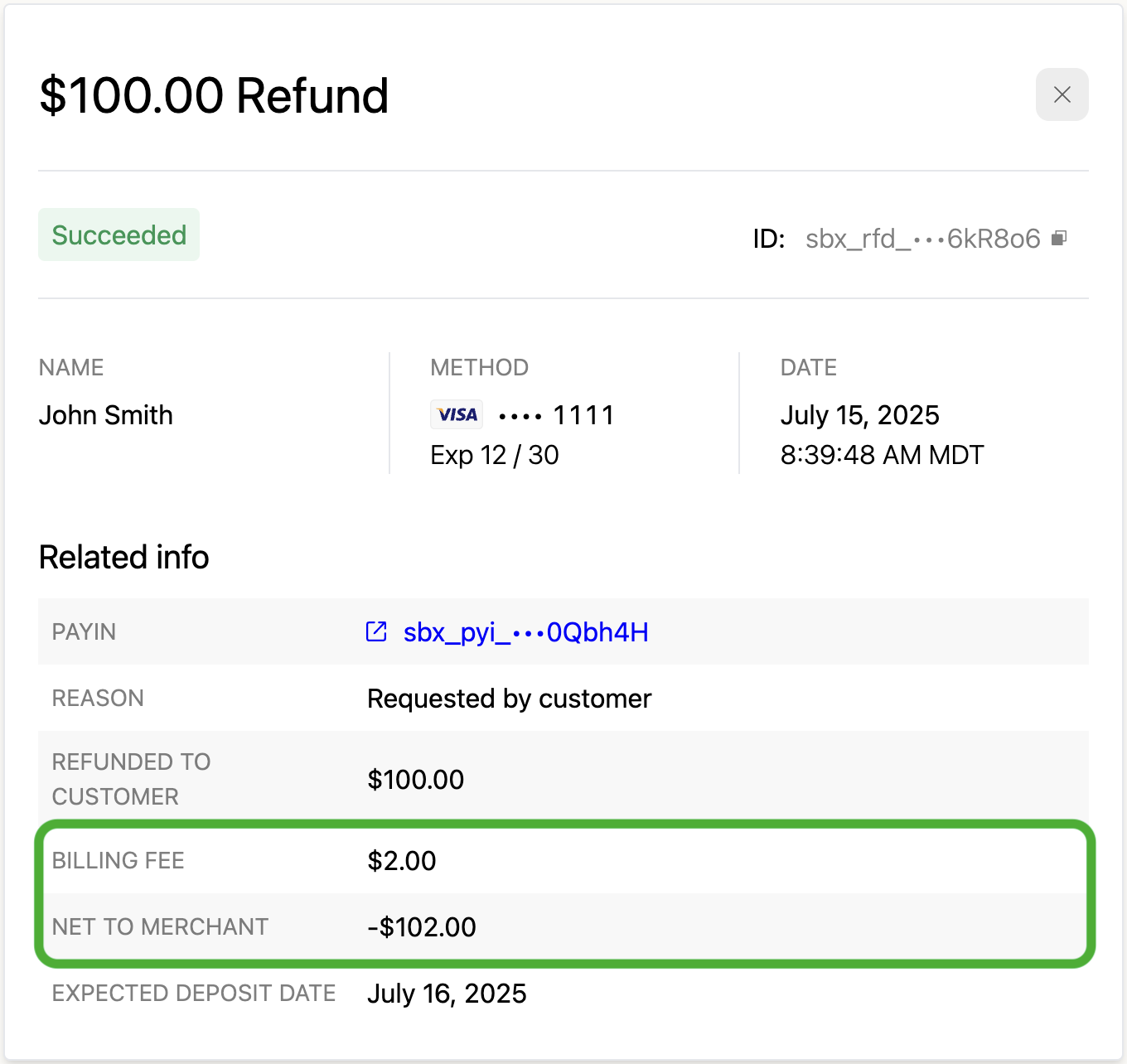
API
After processing the refund, the API response for the refund will return the following in the merchant_fees field:
{
  "data": {
    "refund_id": "sbx_rfd_2zuobJOODP7xgyQYWwKIE6kR8o6",
    //...
    "amount": 10000,
    "currency_code": "USD",
    "merchant_fees": {
      "total_amount": {
        "amount": 200,
        "currency_code": "USD"
      }
    },
    //...
  },
  "errors": null
}
Configure deposit report
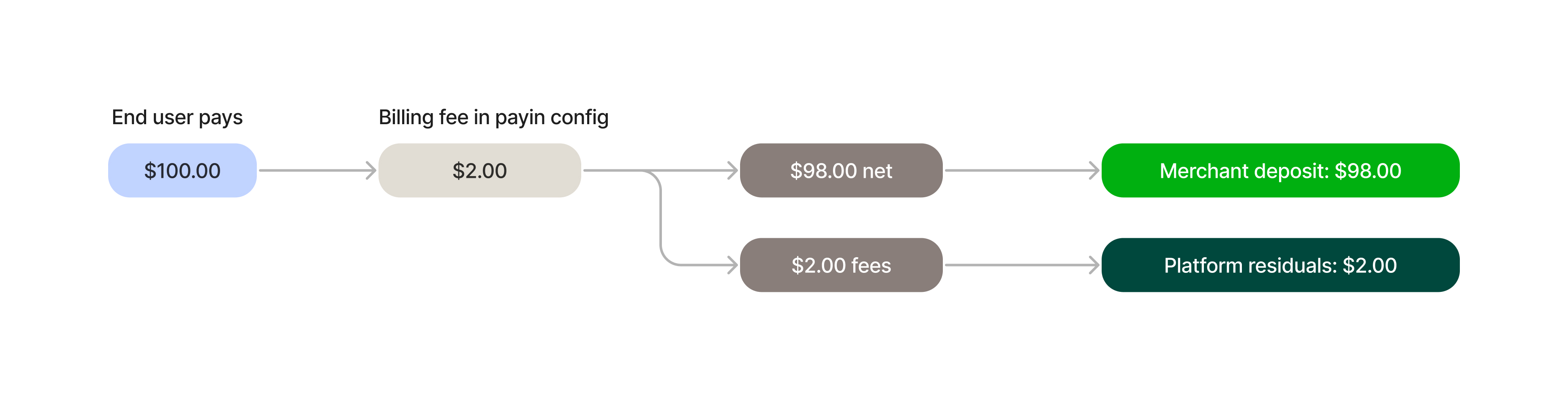
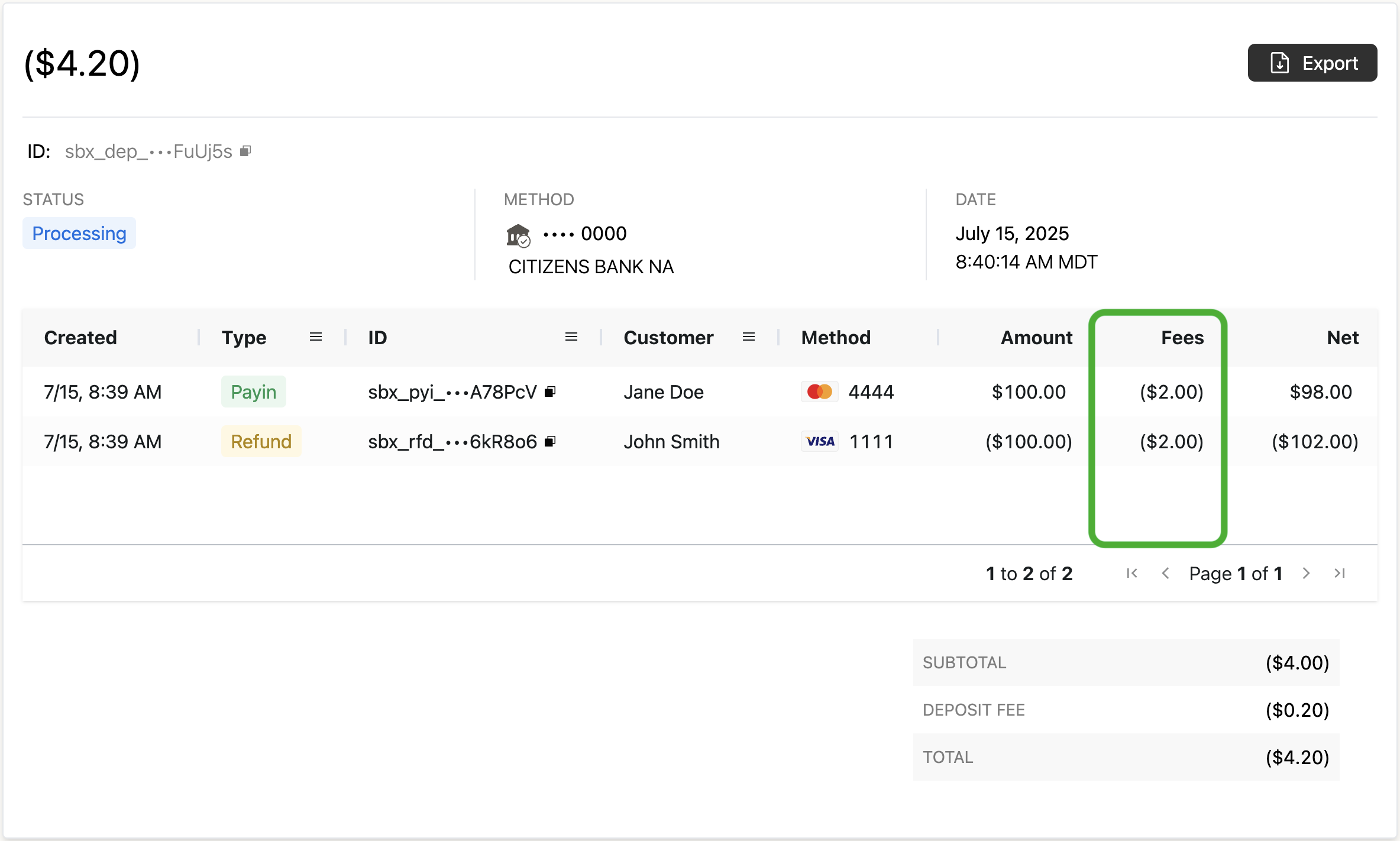
Rainforest will automatically allocate the billing fee to the Platform's residuals that will be deposited to the platform at the beginning of the next month. In this example, the merchant's deposit will include a payin with the net amount of $98 and a refund with the net amount of -$102.
Billing fee column
Configure the Deposit Report Component to include the billing_fees_amount column in the Deposit Details activity report to provide the context on the billing fee to your merchant.
<rainforest-deposit-report
    activity-columns='[
    {"name":"Created","type":"builtin","value":"created_at"},
    {"name":"Type","type":"builtin","value":"type"},
    {"name":"ID","type":"builtin","value":"id"},
    {"name":"Customer","type":"builtin","value":"billing_contact_name"},
    {"name":"Method","type":"builtin","value":"payment_method"},
    {"name":"Amount","type":"builtin","value":"gross_amount"},
    {"name":"Fees","type":"builtin","value":"billing_fees_amount"},
    {"name":"Net","type":"builtin","value":"net_amount"}
]'
></rainforest-deposit-report>
Updated about 2 months ago