
Enable Mobile Pay
Enable Mobile Pay iOS or Android application to process device payments
Mobile Pay is currently in Beta.
Rainforest reserves the right to introduce breaking changes during this period. You will be notified of any updates prior to the release.
Please contact Rainforest support or your Platform Success Manager for more information on this feature.
Feature requirements🔐 Rainforest must enable the platform to access this feature
💲 Billing fees associated to this feature
Implement Mobile Pay to process device payments with five steps:
- Enable Mobile Pay on your integration with Rainforest
- Download the iOS or Android app
- Integrate a device registration flow to register the Mobile Pay app on each device that will process payments
- Integrate the payment flow to initiate payments to the Mobile Pay app
- Configure the Deposit Report Component to show the billing details
Enable app
Please reach out to your Platform Success Manager or support to enable the ability to register the Mobile Pay app as a device with Rainforest to process payments.
Download app
iOS app download
The Rainforest Mobile Pay iOS app is an unlisted application and is available in the Apple Pay store at this direct link.
You will need to provide your merchants with this direct Apple Store link to download the app.
Android app download
The Rainforest Mobile Pay app is publicly available in the Google Play store.
Device registration
Register the device
Mobile Pay utilizes the same configuration steps as registering a physical terminal device. But instead of a physical terminal device, the iPhone or Android phone/tablet with the Mobile Pay app serves as the device.
Devices (i.e., the instance of the app) must be registered to a merchant in order to process payments, which is completed via the Rainforest API. You should integrate a flow in your platform for your merchants to register devices.
When the app is ready to be registered, the app will display a registration code.
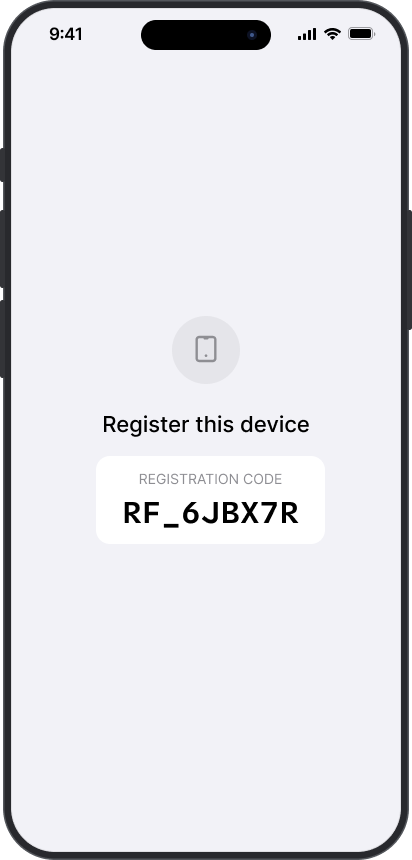
The device is registered via the create device registration endpoint. You'll need to pass:
registration_code: the 8-digit registration code (including the prefixRF_) displayed on the devicemerchant_id: the merchant to process payments on with the devicedevice_name: the friendly name of the device that will appear on the settings page of the app
{
    "registration_code": "RF_6JBX7R",
    "merchant_id": "sbx_mid_example",
    "device_name": "Example device"
}
The app must be open and on the "Register this device" screen with attempting to register. If the app is closed or in the background, we cannot register the device.
Once the device is successfully registered, the app will display a "Ready to process" screen.
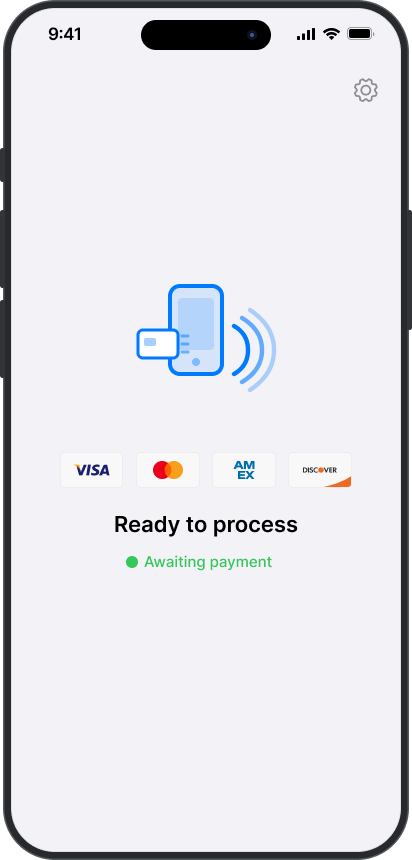
The create device registration response contains a device_registration_id, which identifies the device when sending requests to present a payin on the device.
{
    "status": "SUCCESS",
    "data": {
      "device_registration_id":"sbx_dvc_2SnJJG80tRUhMFmnJ7V0140dFth",
      // ... other attributes of the device
    }
}
De-register the device
A device can be de-registered via the delete device registration endpoint. You may want to de-register a device to:
- Associate the device with a different merchant
- Give the device a new friendly name displayed on the device
Once the device is de-registered, it will immediately display a registration code on the device and be ready to be re-registered.
Process payins
Mobile Pay utilizes the same steps to process a payin as a physical terminal device.
Processing payins involves three steps:
- Create a payin config via the Rainforest API to send information about the payin (amount, end user billing contact, metadata, etc.)
- Present the payin on the app
- Listen to webhooks or poll the API to know the result of the payin
Present the payin on the app
The app will display a "Ready to process" screen when the device is registered and available to process to payins.
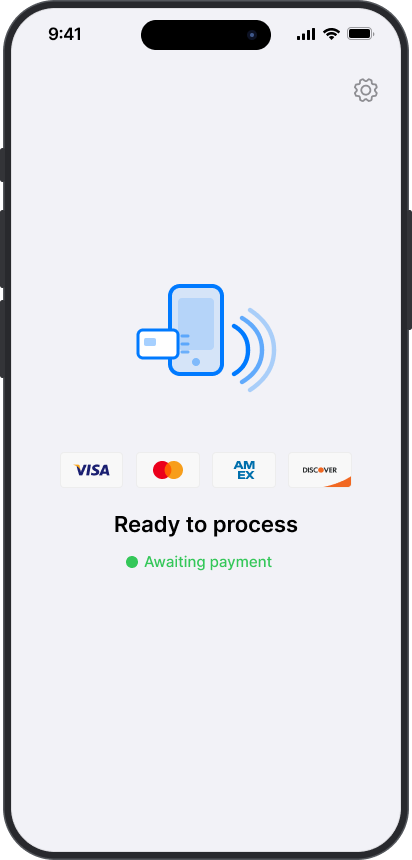
Once a payin is presented on the device, a Tap to Pay screen will appear to collect the payment. The display will be one of the following depending on if the Mobile Pay application is on iOS or Android.
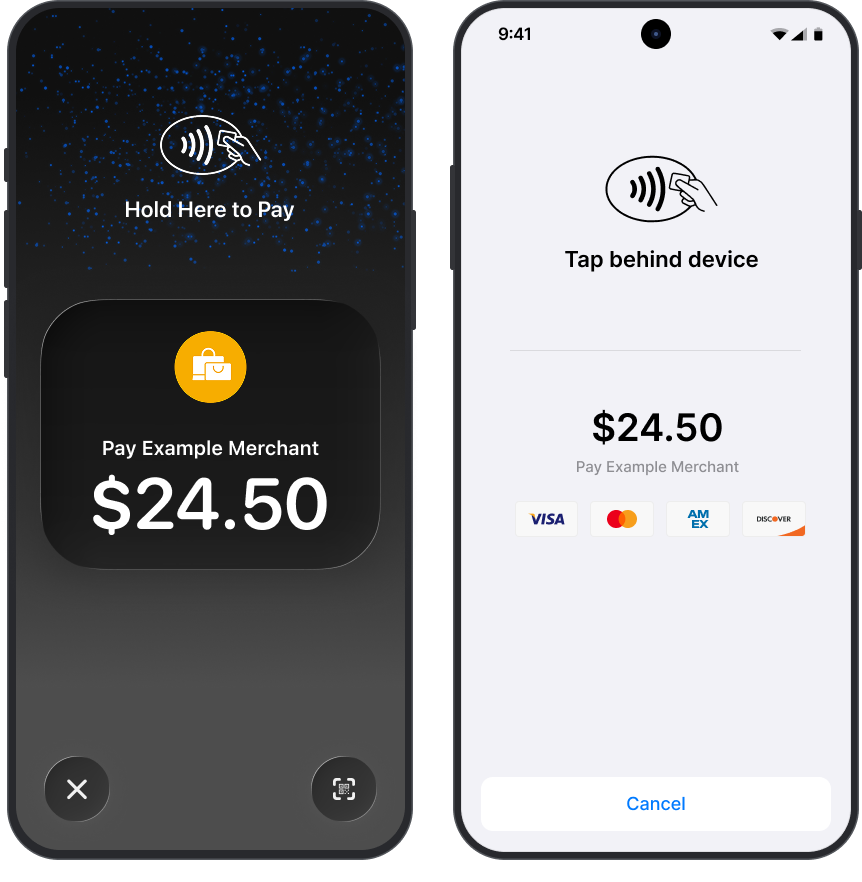
Tap to Pay screen on iOS (left) and Android (right)
Once the end user completes the payment, the app will present one of the following screens depending on the result of the payment.
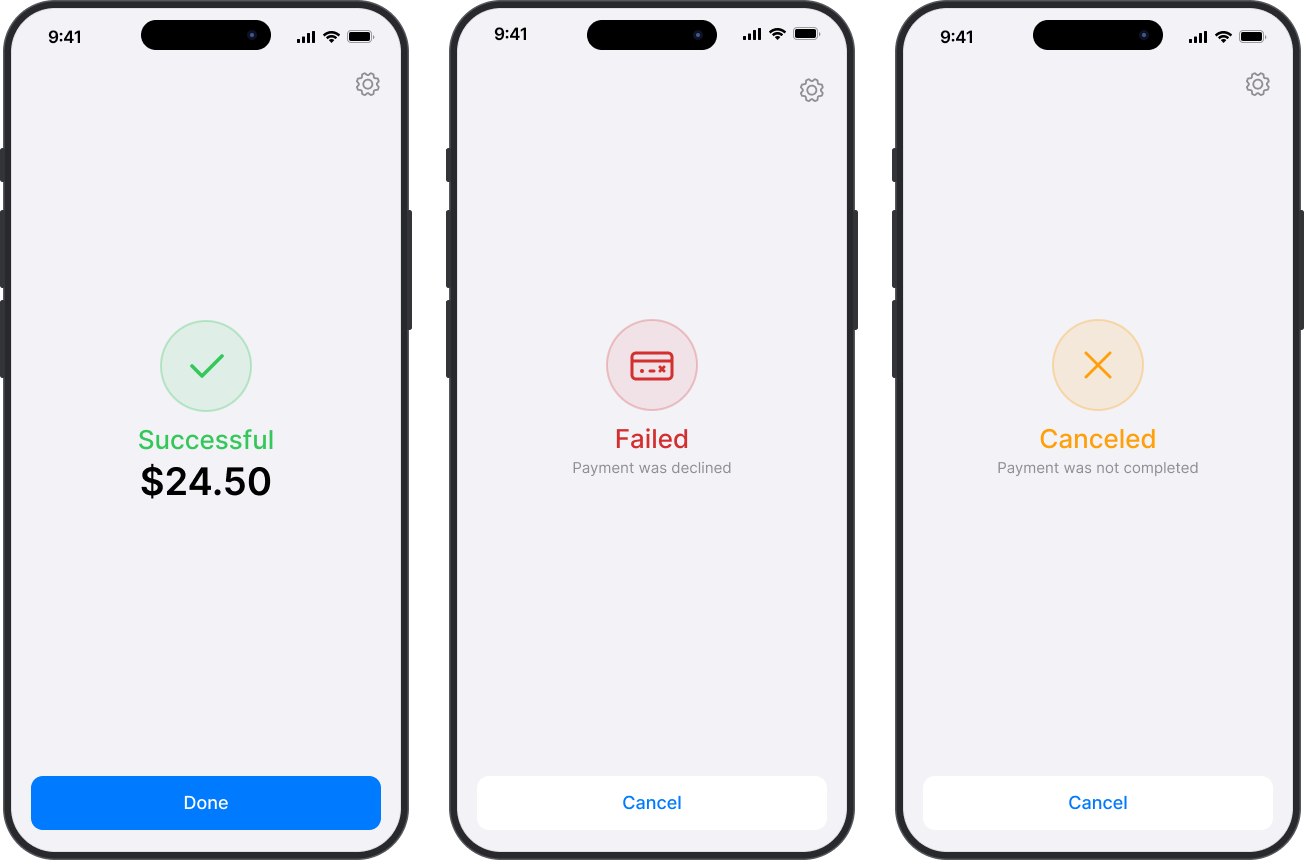
Payment completed successfully (left), declined (middle), or canceled (right)
If the payment fails, then you will need to initiate a new payment to the device if the end user wants to retry. The same payin config can be utilized
Common errors to troubleshoot
Device is disconnected
When attempting to present a payin on a device, if the request returns an error with the message "Device is disconnected", this occurs when the app is not currently open on the "Ready to Process" screen. This can occur due to the following reasons:
- The app is not open or in the background
- The app is on the settings screen
- The device is not connected to the internet
Device in use
When attempting to present a payin on a device, if the request returns an error with the message "Device in use", this occurs when the app is currently presenting another payin to the end user. The app cannot present a new payin until the current one processes or is canceled.
Sandbox simulation
iOS app
To develop with the Mobile Pay Sandbox application, Rainforest supports a Sandbox build in Apple TestFlight and can be downloaded at this link.
Sandbox Apple test account
This account must be used to log into iCloud on the device. Using the "Sandbox Apple Account" in Developer options will not work. It must be logged in as the main Apple/iCloud account on the device.
Testing Tap to Phone in iOS requires a sandbox user in your Apple account. You can create a sandbox Apple account in 4 steps:
- Log into your account at https://developer.apple.com/account.
- Navigate to Users & Access. Then select Sandbox.
- Follow the steps to create a new user.
- Use the new sandbox user's credentials to log into the iCloud account on your test device.
International (non-US) developers
The address of the merchant the device is registered to must match the country of the physical location of the device.
If you have developers outside of the US, then you will need to contact Rainforest support or your Platform Success Manager to get a merchant configured to support Mobile Pay outside of the US.
GPS spoofing will not work and the physical location of the device must match the merchant's country.
Mobile Pay does not work in Production outside of the US. This is only supported for Sandbox development.
Android app
Sandbox testing on Android is currently unavailable. All Sandbox testing should be complete on the iOS application. The payment flows and device interactions are the same between the iOS and Android applications.
Device interactions
On Sandbox, Rainforest will not automatically process the presented payin on the device through the Tap to Phone payment flow.
The end user will complete the Tap to Phone interaction on the device and the tap will appear as successful. However, the payin will remain in the Presenting status until you simulate the desired device interaction. This allows you to simulate the expected payin status and various cards and decline flows.
You can simulate various scenarios with the simulate device interaction endpoint. For example, to test the case where a Visa card is tapped on the device and then successfully processes a payment, you would pass the event PRESENTED and the card VISA_SUCCESS:
{
    "event": "PRESENTED",
    "card": "VISA_SUCCESS"
}
Once you simulate the device interaction, the screen on the app will update and display the result of the payment.
Configure deposit report for billing
Tap to Phone does incur an additional billing fee. If you're passing the fee onto the merchant, then the deposit will include a billing adjustment.
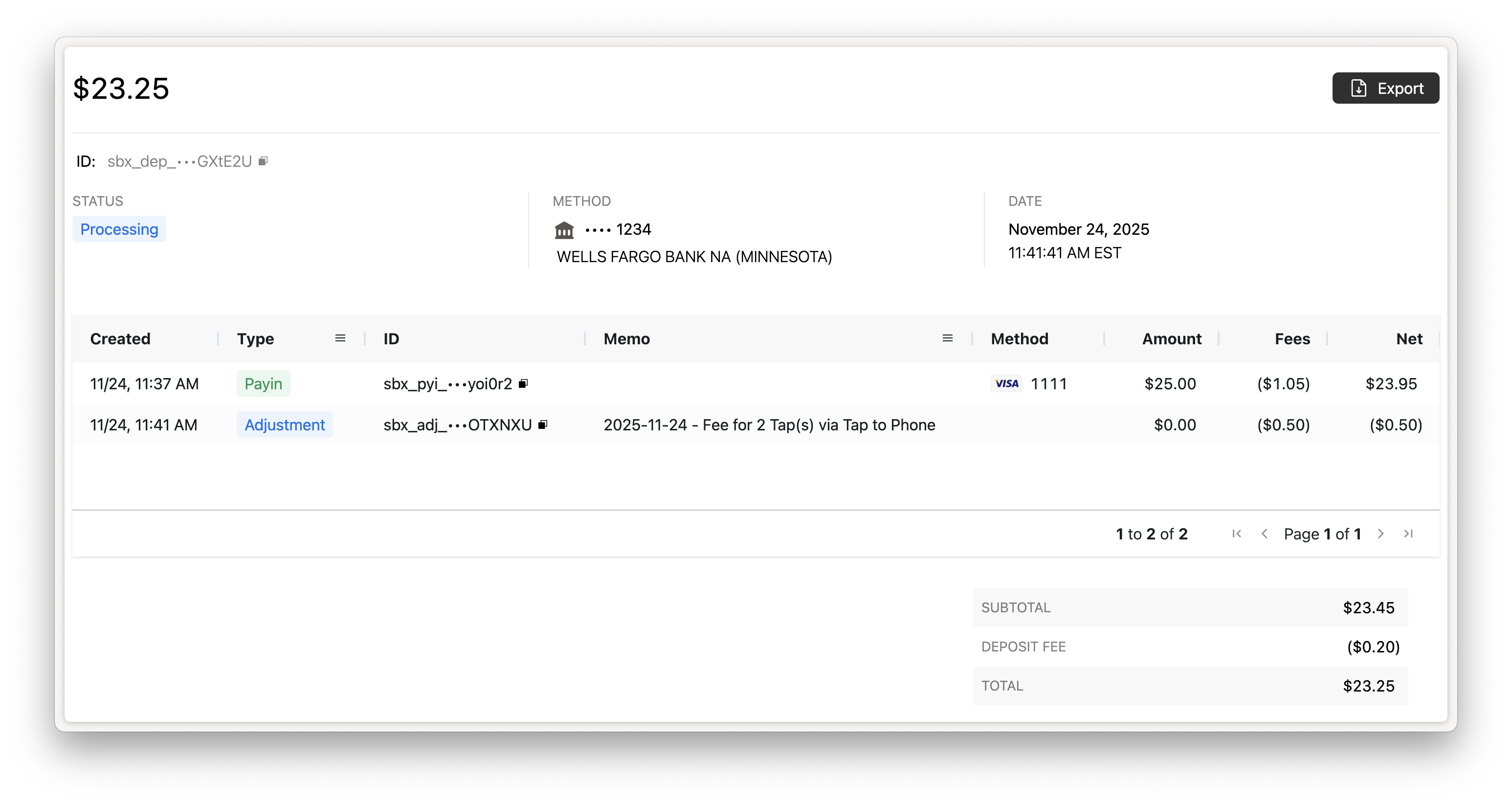
Configure the Deposit Report Component to include the memo column in the Deposit Details activity report to provide context on the billing adjustment to your merchant.
<rainforest-deposit-report
    activity-columns='[
    {"name":"Created","type":"builtin","value":"created_at"},
    {"name":"Type","type":"builtin","value":"type"},
    {"name":"ID","type":"builtin","value":"id"},
    {"name":"Memo","type":"builtin","value":"memo"},
    {"name":"Customer","type":"builtin","value":"billing_contact_name"},
    {"name":"Method","type":"builtin","value":"payment_method"},
    {"name":"Amount","type":"builtin","value":"gross_amount"},
    {"name":"Fees","type":"builtin","value":"billing_fees_amount"},
    {"name":"Net","type":"builtin","value":"net_amount"}
]'
></rainforest-deposit-report>
Updated 2 months ago