
Payout Receiver Management Component
Embed the Rainforest Payout Receiver Management Component to onboard payout receivers
Early PreviewThis feature is currently in Beta. Please contact Rainforest support or your Platform Success Manager for more information on Payouts.
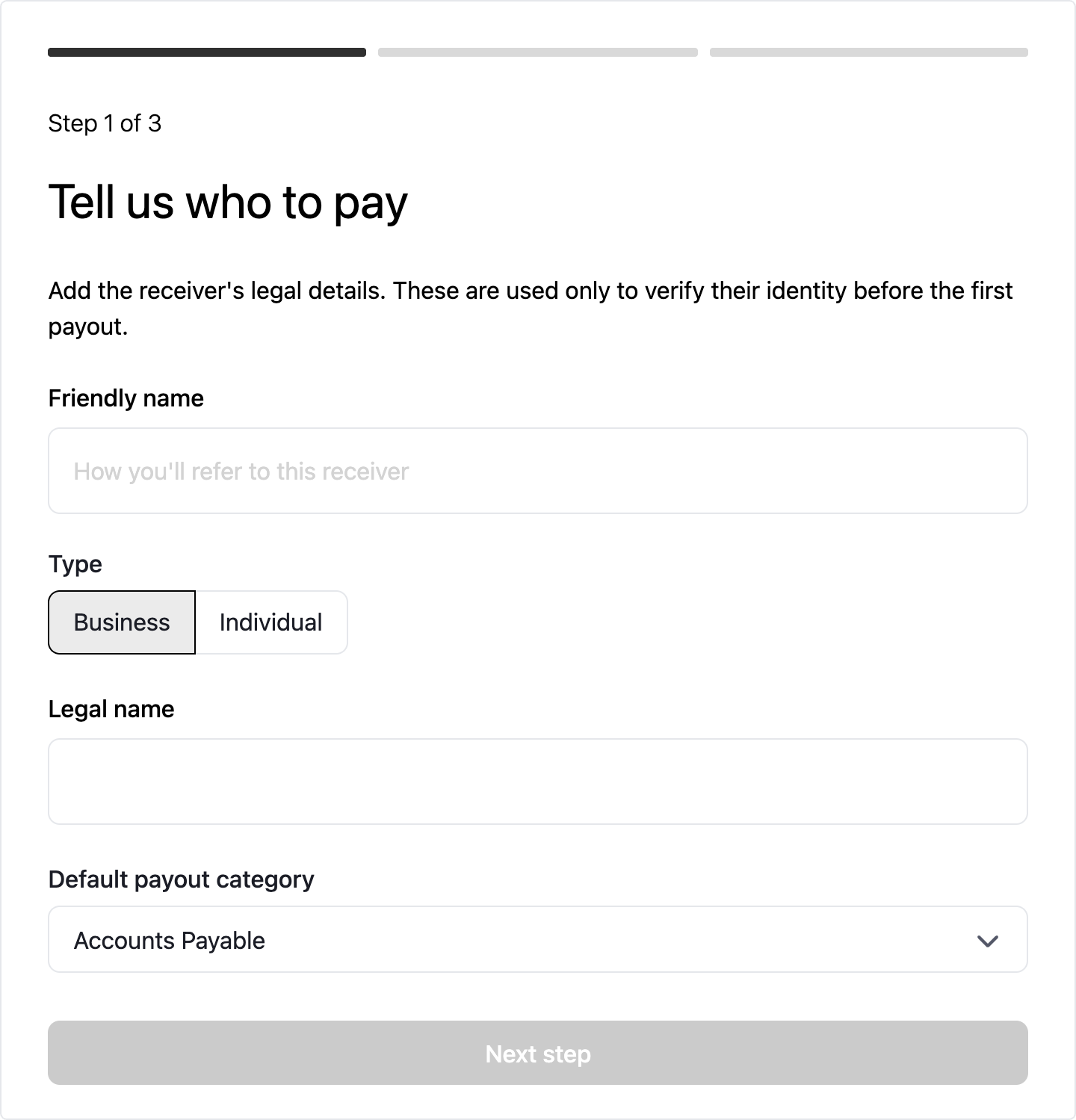
The Payout Receiver Management Component embeds just the form to add a payout receiver, so your platform can place it inside its own experience. The merchant can add the payout receiver themselves, or your platform can show the component to the payout receiver so they enter their own details and bank account.
The same onboarding form is also included in the Merchant Account Component. The Payout Receiver Management Component can be used with any of the payout integration options, including alongside the Merchant Account Component. For example, the merchant can view their balance and payouts, and manage their payout receivers, in the Merchant Account Component. Your platform then shows the Payout Receiver Management Component directly to each payout receiver to enter their own details and bank account.
To compare the various options to onboard payout receivers, see Payout receiver integration options. For how payout receivers work, see Payout receivers.
How to embed a Payout Receiver Management Component
Session authentication
Create a session to grant the Payout Receiver Management Component permissions to add and manage the merchant's payout receivers.
Session constraints and permissions
The session must include the payout_receiver_management_component permission group, which allows the component to view the merchant's payout receivers. Each action in the component requires its own permission group in the session.
| Session permission group | What it allows |
|---|---|
payout_receiver_management_component | View the merchant's payout receivers |
payout_receiver_management_component.create_payout_receiver | Add a payout receiver, enter their details and bank account, and submit them for verification. Also allows a payout receiver in Needs Information to be updated and submitted. |
payout_receiver_management_component.create_payout_method | Add a bank account to an existing payout receiver |
payout_receiver_management_component.update_payout_receiver | Edit the details of a payout receiver that has been submitted, and add a bank account to them |
Leave out the permission group for any action the merchant or payout receiver should not have. Use create_payout_receiver to onboard a new payout receiver, and create_payout_method to add a bank account to a payout receiver in Needs Method or Active.
Merchant constraint
The Payout Receiver Management Component always adds a payout receiver to a single merchant, so the session should be constrained to that merchant.
curl --location 'https://api.rainforestpay.com/v1/sessions' \
--header 'Content-Type: application/json' \
--header 'Authorization: Bearer {{api_key}}' \
--data '{
    "ttl": 86400,
    "statements": [
        {
            "permissions": [
                "group#payout_receiver_management_component",
                "group#payout_receiver_management_component.create_payout_receiver",
                "group#payout_receiver_management_component.create_payout_method"
            ],
            "constraints": {
                "merchant": {
                    "merchant_id": "REPLACE_ME"
                }
            }
        }
    ]
}'
Payout receiver constraint
When you embed the component for a payout receiver to fill in their details, the session should be constrained to that payout receiver, so they can only view and update their own details.
{
    "ttl": 86400,
    "statements": [
        {
            "permissions": [
                "group#payout_receiver_management_component",
                "group#payout_receiver_management_component.create_payout_receiver",
                "group#payout_receiver_management_component.create_payout_method"
            ],
            "constraints": {
                "merchant": {
                    "merchant_id": "REPLACE_ME"
-               }
+               },
+               "payout_receiver": {
+                   "payout_receiver_id": "REPLACE_ME"
+               }
            }
        }
    ]
}
JavaScript bundle
Include the merchant JavaScript bundle in your frontend to access the Payout Receiver Management Component.
<script type="module" src="https://static.rainforestpay.com/sandbox.merchant.js"></script>Content security policy (CSP)
Content Security Policy (CSP)If your webpage uses a Content Security Policy to control what code is allowed on the page, you must make changes to allow the Rainforest Components to load.
You will need to update your Content Security Policy for
script-srcandframe-srcdirectives to include:*.rainforestpay.com
Payout Receiver Management Component
Add the Rainforest Payout Receiver Management Component with custom configuration designed in the component studio.
<rainforest-payout-receiver-management
  session-key="REPLACE_ME"
  merchant-id="REPLACE_ME"
></rainforest-payout-receiver-management>
Customize the component
Head over to the Component Studio for more attributes you can provide to customize the component’s appearance and behavior.
Prop configuration
Rainforest supports prop attributes to configure the Payout Receiver Management Component with various functionality and styling. See the Component Studio for a full list of attributes and valid values.
Style
The component takes the same style-* attributes as all the other Rainforest components, such as style-accent-color, style-button-color, and style-font-family.
Payout receiver
Use payout-receiver-id to open the component for an existing payout receiver, such as to update their details or add a bank account.
<rainforest-payout-receiver-management
    payout-receiver-id="REPLACE_ME"
></rainforest-payout-receiver-management>
When payout-receiver-id is not set, the component automatically creates a new payout receiver after the user fills out Step 1 and clicks “Next step”. See the event listeners to know when the payout receiver is created and retrieve the payout receiver ID.
Audience
Use audience to choose who fills in the component.
| Value | Description |
|---|---|
merchant | Default. The merchant enters the payout receiver's friendly name, type (business or individual), identity details, and default payout category, then adds the payout receiver’s payout method. |
receiver | The payout receiver enters their own identity details and bank account. They are not asked for the friendly name, type, or default payout category, which the merchant already set. Requires a payout-receiver-id. |
The payout receiver must already exist to use the receiver audience. First add the payout receiver with the merchant audience or the API, then pass their payout-receiver-id.
<rainforest-payout-receiver-management
    payout-receiver-id="REPLACE_ME"
    audience="receiver"
></rainforest-payout-receiver-management>
Steps
The component consists of three steps:
- Identity: The payout receiver's identity details.
- Payment method: The payout receiver's bank account.
- Review: A review of the details before the payout receiver is submitted for verification.
Use the steps prop to choose which steps to display, as a comma-separated list. The steps always display in the order identity, payment method, review, regardless of the order they are listed in.
| Value | Description |
|---|---|
identity | Enter the payout receiver's identity details |
payment-method | Add a bank account to the payout receiver. Use it on its own with a payout-receiver-id to only add a bank account to an existing payout receiver. |
review | Review the details and submit the payout receiver for verification |
Displaying a subset of the steps is useful when the merchant and the payout receiver each provide part of the onboarding, or when an existing payout receiver only needs one change. The following are common use cases, with the audience and steps to embed the component with:
| Use case | Audience | payout-receiver-id | Steps |
|---|---|---|---|
| The merchant onboards a new payout receiver from start to finish. | merchant | Not provided | Not provided |
| The merchant adds a new payout receiver, and the payout receiver enters their own bank account later. | merchant | Not provided | identity |
| The payout receiver enters their own identity details and bank account, after the merchant added them. | receiver | Provided | Not provided |
| The payout receiver adds their bank account, after the merchant entered their identity details. | receiver | Provided | payment-method,review |
| The payout receiver adds a new bank account after they are Active or Needs Method. | receiver | Provided | payment-method |
| The merchant adds a new bank account for a payout receiver who is Active or Needs Method. | merchant | Provided | payment-method |
| The merchant updates a payout receiver's friendly name or default payout category. | merchant | Provided | identity |
For example, to have the payout receiver add their bank account after the merchant entered their identity details:
<rainforest-payout-receiver-management
    payout-receiver-id="REPLACE_ME"
    audience="receiver"
    steps="payment-method,review"
></rainforest-payout-receiver-management>
When steps is not provided, the component displays the relevant steps based on the payout receiver's status when the component is opened:
| Payout receiver status | merchant audience steps | receiver audience steps |
|---|---|---|
New payout receiver (payout-receiver-id not provided) | Identity, payment method, and review | Not supported. The receiver audience requires a payout-receiver-id. |
| Needs Information | Identity, payment method, and review | Identity, payment method, and review |
| Verifying, Needs Method, or Active | Identity only, to update the friendly name or default payout category. To add a new bank account, provide payment-method in the steps. | Payment method only, to add a new bank account |
| Declined or Deactivated | Identity only, with the details shown as read-only | Payment method only |
Once a payout receiver is submitted for verification, their identity details can no longer be changed, so only the fields that can still be updated are shown.
When the component adds a new payout receiver by not setting a payout-receiver-id, the steps must include identity, since the identity step is where the payout receiver is created.
Payout methods
Use allowed-payout-methods to choose how a bank account can be added to the payout receiver, as a comma-separated list. Not specifying allowed-payout-methods offers both.
ACH- enter the account and routing numbersVALIDATED_ACH- authenticate into their online bank account through Rainforest's third-party partner, Plaid
Only the owner of the bank account can authenticate into it, so VALIDATED_ACH is only offered with the receiver audience, or when the payout receiver is the merchant themselves. For any other payout receiver with the merchant audience, the merchant enters the account and routing number.
<rainforest-payout-receiver-management
    allowed-payout-methods="ACH,VALIDATED_ACH"
></rainforest-payout-receiver-management>
Event listeners
The Payout Receiver Management Component will emit the following events as the merchant or payout receiver interacts with it.
| Event | Description |
|---|---|
receiver-created | Merchant entered the identity details for a new payout receiver, which created the payout receiver. |
payment-method-added | A payment method was added to the payout receiver. |
submitted | Payout receiver was submitted for verification. |
complete | The last step displayed was finished. See below for when this is emitted for each step. |
The complete event is emitted once, when the merchant or payout receiver finishes the last step displayed. The last step depends on the steps displayed:
| Last step displayed | The complete event is emitted when |
|---|---|
| Review | The merchant or payout receiver clicks Close on the confirmation shown after the payout receiver is submitted for verification. |
| Payment method | The bank account is saved. |
| Identity | The merchant clicks Save, which creates the new payout receiver or saves the changes to an existing payout receiver. |
The complete event is not emitted when an error occurs, or when the merchant or payout receiver leaves before finishing the last step.
You may listen for the events above as needed, such as to close your own dialog when the flow is complete. In the case of receiver-created, you can obtain the payout receiver from the event data. In the case of payment-method-added, you can obtain the bank account.
Sample event listening
var component = document.querySelector('rainforest-payout-receiver-management');

component.addEventListener('receiver-created', function (event) {
    // Get the payout receiver
    const [receiver] = event.detail;
});

component.addEventListener('payment-method-added', function (event) {
    // Get the bank account
    const [paymentMethod] = event.detail;
});

component.addEventListener('complete', function () {
    // Close your dialog
});
Listen to webhooks
Subscribe to the payout receiver webhooks to keep your platform in sync with the life cycle of each payout receiver, such as when they are verified and become active.
When a payout receiver moves to Needs Method, they cannot be paid until a new bank account is added and verified, such as when their only bank account is deactivated after a returned payout. Listen for the payout_receiver.needs_method webhook, then bring the merchant or the payout receiver back into your experience to add a new bank account in the Payout Receiver Management Component:
<rainforest-payout-receiver-management
    payout-receiver-id="REPLACE_ME"
    steps="payment-method"
></rainforest-payout-receiver-management>
Once the new bank account is verified, the payout receiver moves back to Active.
Sandbox simulation
In the Sandbox environment, Rainforest does not verify payout receivers, which allows you to have more control over testing.
To test the Payout Receiver Management Component in Sandbox:
- Submit the payout receiver. Add a payout receiver from the component and submit them on the review step. A third-party payout receiver stays Verifying in Sandbox after they are submitted.
- Simulate the verification. Move the payout receiver to Active, Needs Method, or Declined via the simulate payout receiver endpoint. This allows you to test all webhooks for payout receivers that you will receive in Production.
Updated about 6 hours ago